🌺
Release 16.0 - September 2 2026




Release Highlights
🕺Announcements
- N/a for this release
🦖 Features
Upscaler Benchmark
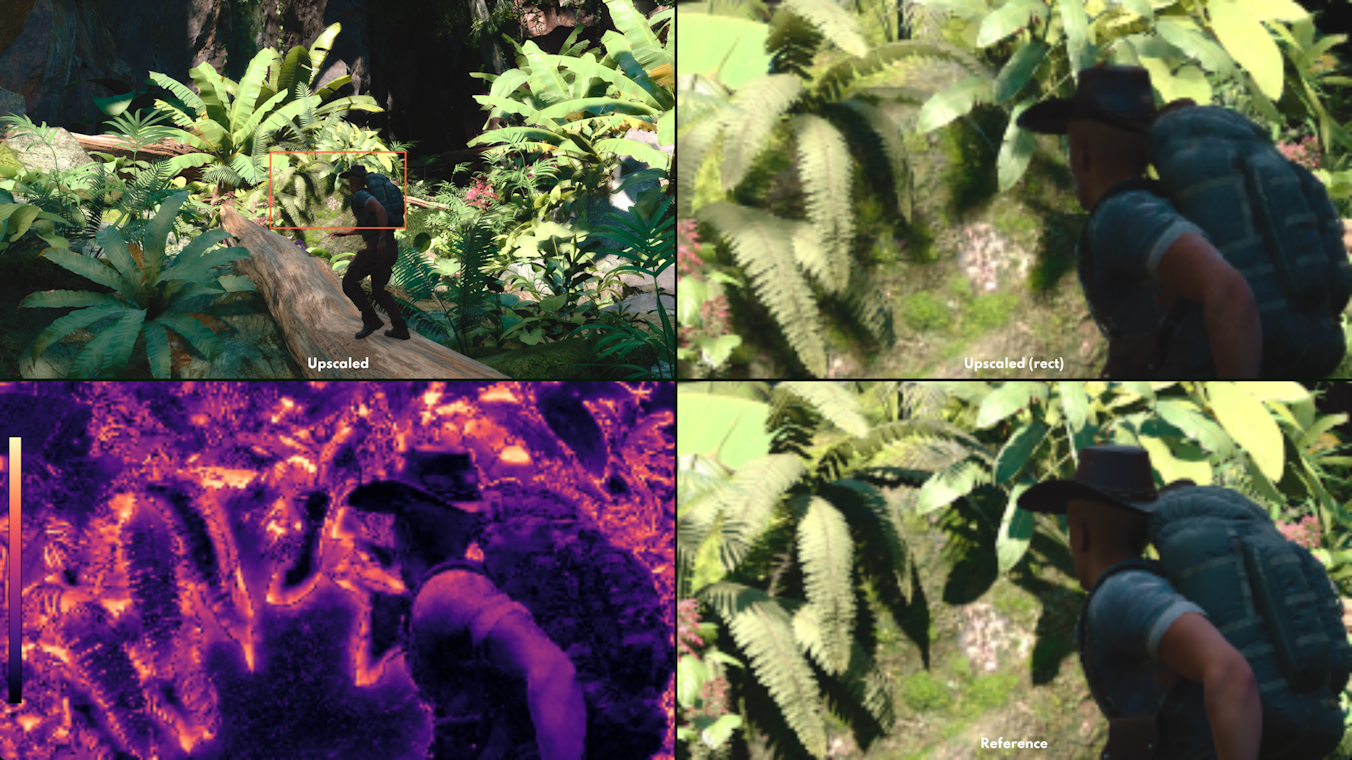
Evolve can now measure the image quality of an upscaler in real time, on your own hardware. See which upscaler looks best and runs fastest on your GPU, and how each one trades image quality for speed.
What an upscaler does
An upscaler lets a game render at a lower resolution, which is cheaper and faster, and then reconstructs a sharp, full-resolution image from it, recovering most of the detail you'd otherwise lose. It's how modern games hit high frame rates at high resolutions without rendering every pixel natively.
But that speed comes at a price: the upscaler is extra work on top of the standard rendering, and the reconstructed image is never quite the real thing. Evolve measures both sides of that trade-off, in real time: the performance of the upscaler itself and the image quality of the upscaled image.
What you can compare
The new Upscaler Benchmark supports all the major upscalers:
- AMD FidelityFX Super Resolution — FSR 2, FSR 3, and FSR 4
- Intel XeSS
NVIDIA DLSS is not available at this time. We're sorting out licensing issues, and it will be available soon.
Each upscaler can be benchmarked across its quality presets, so you can compare not just one upscaler against another but each upscaler's own quality-vs-performance trade-off:
- FSR 2 / FSR 3 / FSR 4 — Quality, Balanced, Performance, Ultra Performance
- XeSS — Ultra Quality+, Ultra Quality, Quality, Balanced, Performance, Ultra Performance
The benchmark upscales to a selectable target resolution — 720p (the default, used by official runs), 1080p, or 1440p.
The three scores
Every upscaling run gives you three scores:
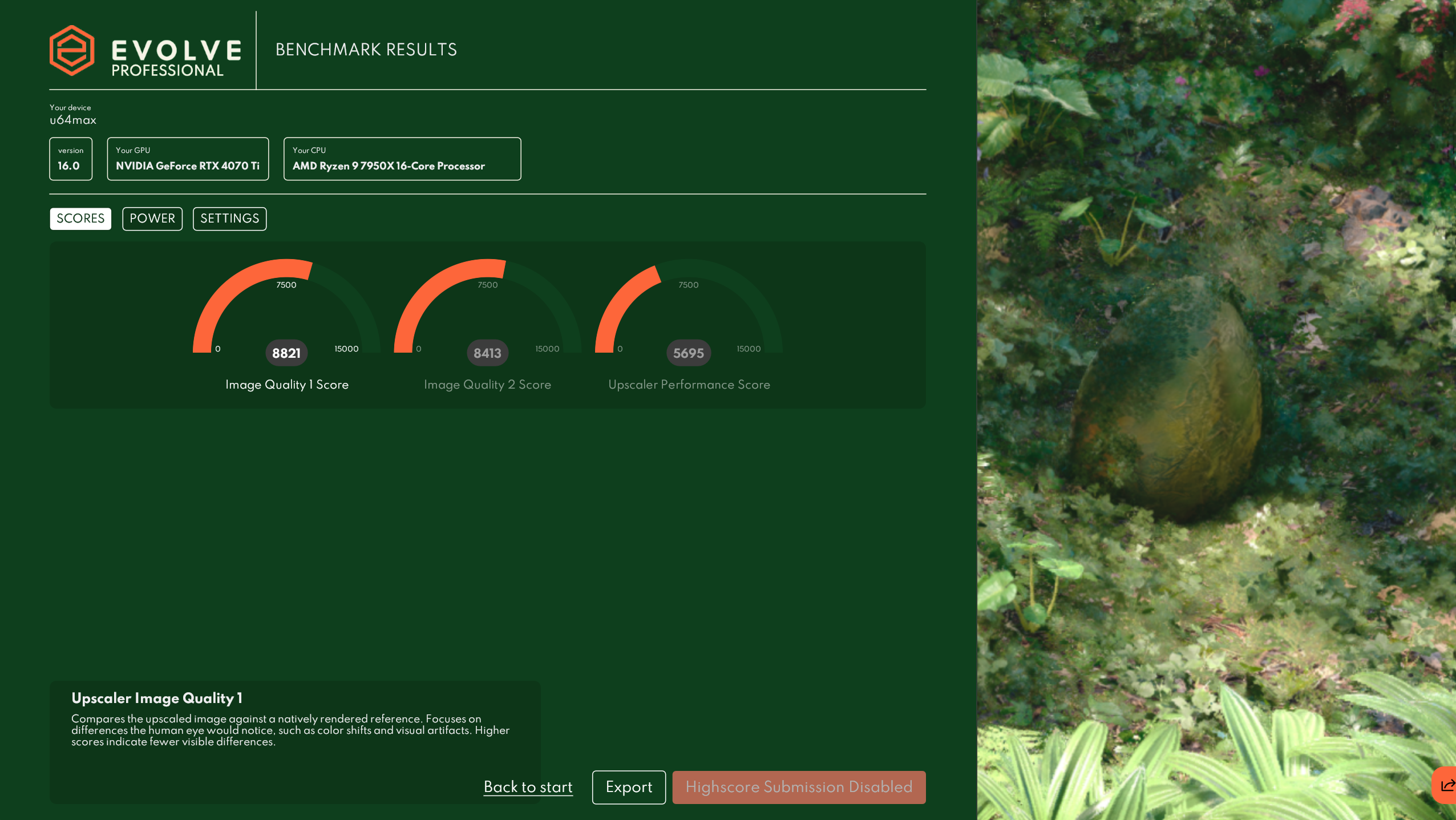
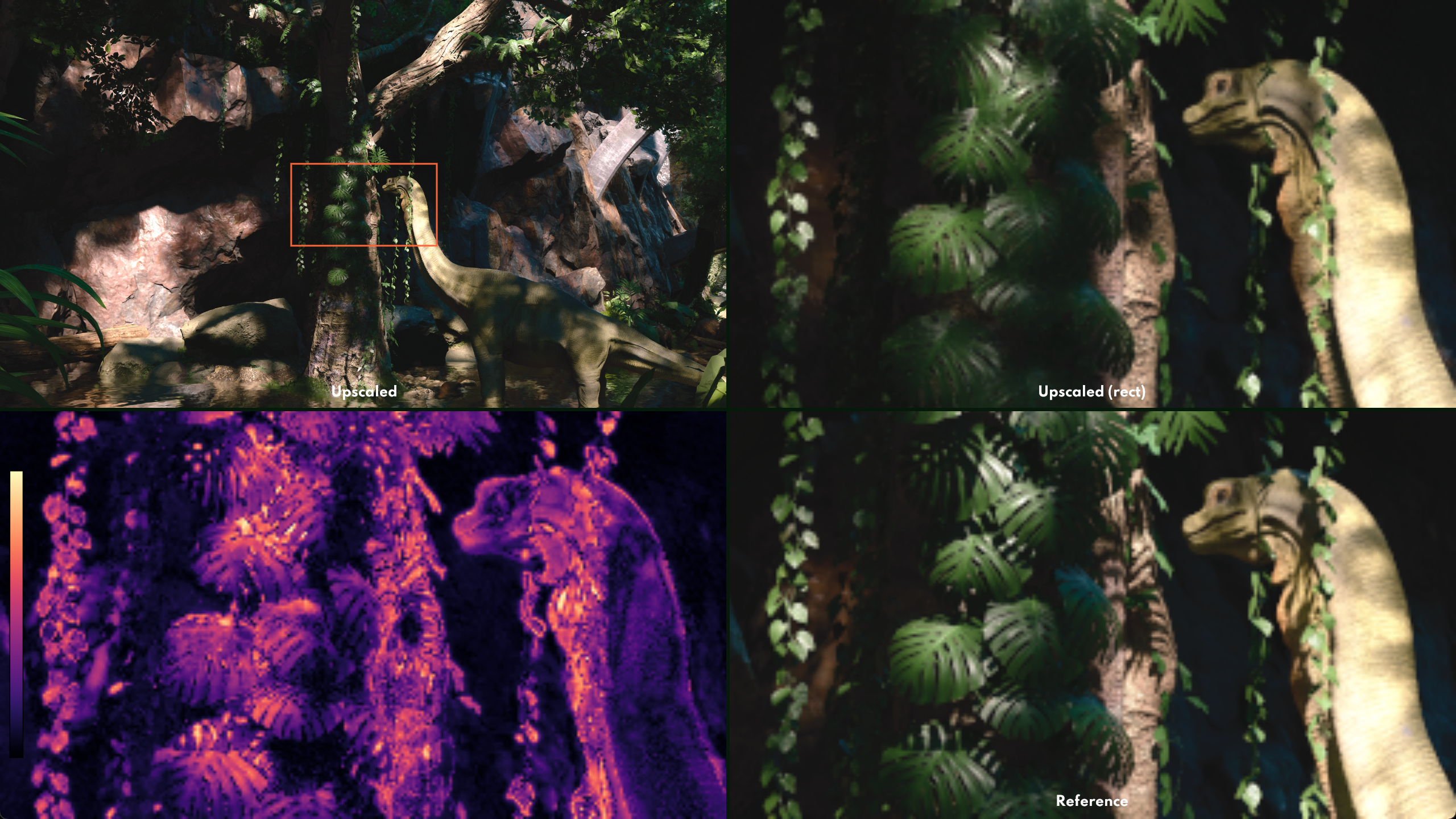
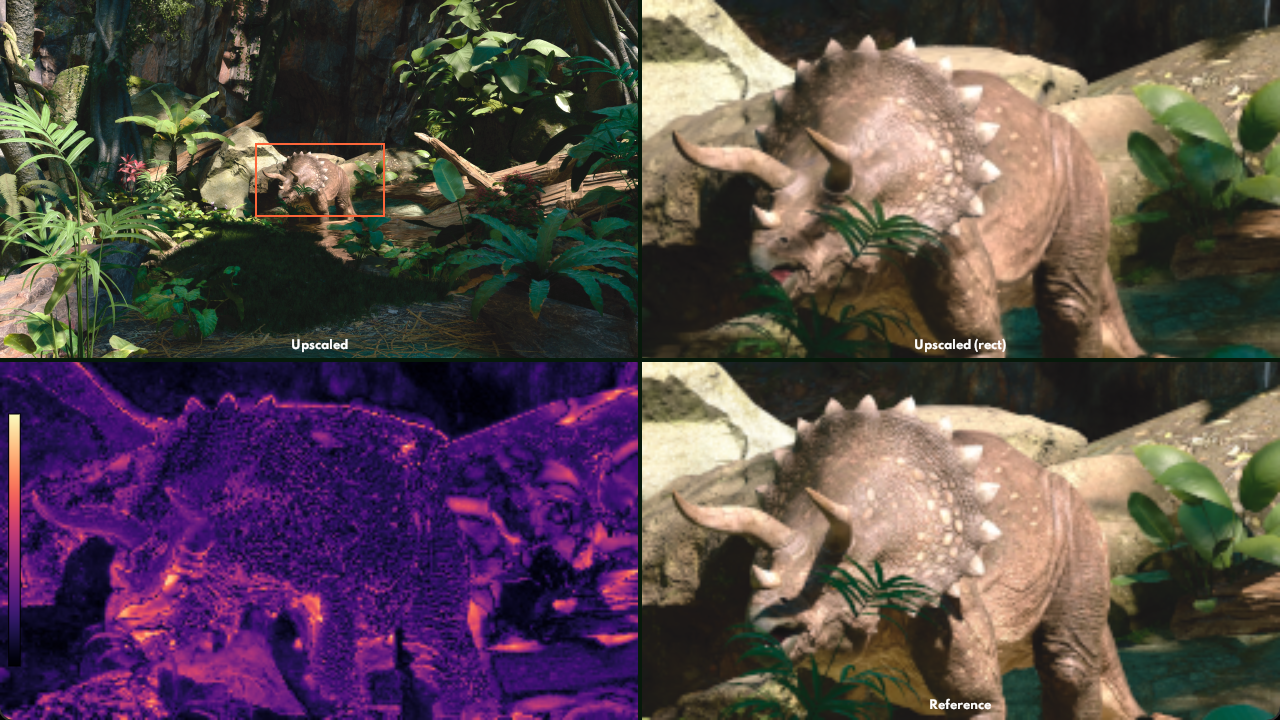
- Upscaler Image Quality 1 — how perceptually close the upscaled image is to a high-fidelity reference, using NVIDIA's FLIP perceptual error metric.
- Upscaler Image Quality 2 — how well the upscaled image preserves fine structure and detail, using the SSIM (structural similarity) metric. Higher means the output keeps more of the reference's structure.
- Upscaler Performance — the GPU time the upscaling step adds to each frame: turning the low-resolution input into the final image, isolated from the rest of the frame. This is the overhead you pay back in exchange for rendering the scene at a lower resolution.
How we measure image quality (for the curious)
You don't need to read this section to use the benchmark — it explains how the image-quality scores are produced under the hood.
An upscaler doesn't simply invent extra pixels. A low-resolution render is full of aliasing, the jagged edges and shimmering you see when there aren't enough pixels to represent fine detail. A good upscaler resolves that aliasing as it reconstructs the higher-resolution image; in other words, upscalers perform anti-aliasing internally. So to judge an upscaler, you have to judge how correct that reconstruction is, not just whether it produced more pixels.
To do that, we compare the upscaled image against a "ground truth" reference built with supersampling, one of the highest-quality ways to anti-alias an image. Supersampling renders the scene at many times the target resolution and shrinks it back down, averaging many high-resolution samples into every final pixel. This gives a very clean image of the exact scene the upscaler is trying to reconstruct.
The catch: supersampling the whole frame at a high factor every frame is far too expensive to do in real time — and the benchmark needs to run real-time, on your own hardware. Supersampling a 720p frame at 8× would mean rendering it at 10240×5760, almost 59 million pixels every frame. On an RTX 4090 that runs at about 11 frames per second. It's an excellent way to establish ground truth offline, and we use it exactly that way, but it is not something you can put inside an interactive benchmark.
The key insight is that you don't need to supersample the whole frame. A small subsection of the image can stand in for the full image. But that raises two questions at once — how much of the frame do you need, and how heavily does it need supersampling? — so we measured about twenty combinations of the two across every upscaler, grading each against the whole-frame 8× reference rendered offline.
Below 3× supersampling the upscalers came out in the wrong order, even when covering the entire frame; above 3×, nothing improved. The size of the region turned out to control something different: how closely the score follows the action frame by frame. So Evolve uses the cheapest supersample factor that still ranks correctly and spends the rest of the budget on coverage — a region in the centre of the frame covering 1/4 of the frame per axis (320×180 at the default 720p target, 480×270 at 1080p, 640×360 at 1440p), rendered at 3× and shrunk back down to a clean reference.
At the default 720p target that's about 0.5 million pixels per frame instead of 59 million — over 100× less work, which is what keeps the benchmark real-time and leaves room for lower-end and mobile hardware.
The upscaler still runs on the full frame exactly as it would in a game; only the small centre region is supersampled for scoring. Every frame, Evolve crops that same region out of the upscaled output and compares it against the supersampled reference, producing a FLIP and an SSIM value for the frame.
Those per-frame values are then combined into the two scores — but not by a plain average. Half the weight goes to the average across the run and half to the worst 10% of frames, so an upscaler that mostly looks fine but falls apart on a handful of frames — ghosting, shimmer, a bad disocclusion — can't hide that behind a good average.
What these scores are for
These scores answer which upscaler looks best on your hardware, and roughly by how much — a ranking, produced in real time.
They're not an absolute verdict on the fidelity of an individual generated pixel. Scoring a quarter of the frame against a 3× reference is a deliberate trade that buys real-time operation: it ranks upscalers the same way the offline whole-frame reference does, but it isn't the alias-free ideal that 8× or 16× approaches. If it's the absolute quality of generated pixels you're after, rather than how upscalers compare, the right instrument is a whole-frame 8× or 16× reference rendered offline — the standard this configuration was validated against.
Why the camera moves at a fixed pace
Modern upscalers lean heavily on the previous frame to build the next one: they take what they already drew, shift it to line up with the new camera position, and reuse it. The less the image moves between two frames, the easier that reuse is, and the cleaner the result. Fast motion is where upscalers struggle and show their artifacts.
That creates a fairness problem. If Evolve moved the camera based on real elapsed time, a faster GPU would draw more frames per second, so each frame would move the camera only a little, while a slower GPU would jump the camera further between frames. The slower machine would then score worse on image quality, not because its upscaler is any worse, but simply because it had less time to keep up.
To keep the playing field level, the benchmark moves the camera by a fixed amount per frame instead of by real time. Every machine, fast or slow, sees the exact same camera path and hands the upscaler the exact same amount of motion to deal with. That way the image-quality scores reflect how good the upscaler is and nothing else. Note that this fixed pace movement doesn't affect the upscaler performance score!
Running it from the command line
The upscaler benchmark is available to command-line for advanced and professional users. To pick the benchmark and the upscaler, use:
evolve.exe run-custom --benchmark upscaling --upscaler xess --upscaler-quality-xess quality
--upscaler accepts fsr2, fsr3, fsr4, or xess (whichever your GPU and drivers support).
Each upscaler has its own quality flag — --upscaler-quality-fsr accepts quality, balanced, performance, or ultra-performance, and --upscaler-quality-xess adds ultra-quality and ultra-quality-plus. Omit the quality flag to use the default preset. Custom runs can also pick the target resolution with --target-resolution (720p, 1080p, or 1440p).
For more information on CLI options, see https://www.evolvebenchmark.com/technical-guide#chapter-4
🐞 Bug fixes & improvements
- Evolve has moved to a new authentication system. You'll need to log in once more after updating, but your account, your runs and your highscores all carry over — everything else stays exactly as it was.
- Fixed
--presethaving no effect from the command line. --resulthas moved onto the run subcommands, alongside the other export flags: userun-custom --result <FILE>instead of--result <FILE> run-custom.- Global flags (
--gpu,--offline,--fullscreen,--size) now work on either side of the subcommand instead of only before it, and--fullscreen/--sizenow apply torun-officialas well.
🧜♂️ Thank you!
- N/a for this release
✍️ Additional Information
If you're a member of the press or influencer feel free to use the form on our website (https://www.evolvebenchmark.com/press-influencers) and sign up for a free copy of the professional version!